
Definition
Let us cut through the noise.
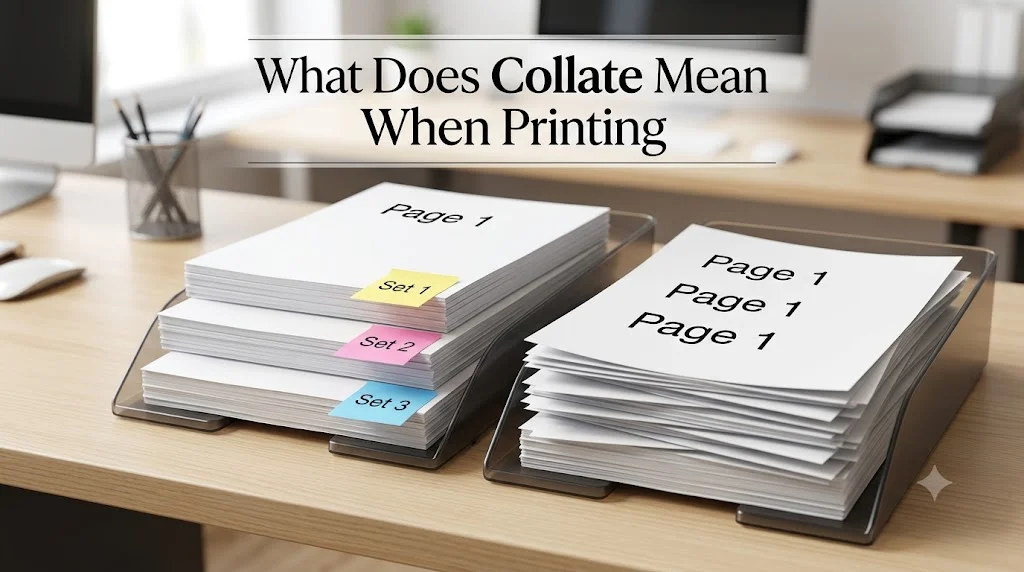
Collate means arrange printed pages into complete, sequential sets.
You just printed 20 copies of an 8 page proposal. Now you are surrounded by loose sheets. Page 3s mix with page 7s. Your coworker sighs. This feels like a punishment.
It is not your fault. Someone forgot to check a tiny box.
That box says collate. Understanding collate meaning printing saves you minutes every single day. Maybe hours each month. Let me show you exactly how it works. No fluff. No confusing manuals. Just real answers.
If you print three copies of a five page document, collated output gives you:
Set one: pages 1 2 3 4 5
Set two: pages 1 2 3 4 5
Set three: pages 1 2 3 4 5
You grab the top set. Hand it to someone. Grab the next set. Hand it again. Done.
Uncollated printing gives you something entirely different:
All page ones: page 1, page 1, page 1
All page twos: page 2, page 2, page 2
All page threes: page 3, page 3, page 3
Now you must sort by hand. Pull one page 1. Find a page 2. Add a page 3. Repeat twenty times. That is slow. That is frustrating. That is totally avoidable.
The collate option in printing exists for one reason: respect your time.
A Simple Analogy That Makes Collate Click
Imagine a deck of cards. You need three identical sets of Ace through King.
Collated means you deal Ace, 2, 3, 4, 5, 6, 7, 8, 9, 10, Jack, Queen, King. Then you deal the exact same sequence again. Then again. Three perfect stacks.
Uncollated means you throw all Aces together. Then all twos together. Then all threes. Good luck building three complete decks without a headache.
Nobody chooses uncollated on purpose. They just do not know the difference. Now you do.
Collated vs Uncollated: A Side by Side Table You Can Trust
Here is the clearest comparison you will find anywhere.
| What you print | Collated result | Uncollated result |
|---|---|---|
| 3 copies of a 4 page document (pages 1 2 3 4) | 1,2,3,4,1,2,3,4,1,2,3,4 | 1,1,1,2,2,2,3,3,3,4,4,4 |
| Ready to distribute? | Yes. Each stack is a full document. | No. You must collate by hand. |
| Best for | Handouts, reports, booklets, meeting packs | Bulk single pages, NCR forms, specific sorting needs |
| Printer memory use | Slightly higher but negligible | Lower but usually irrelevant |
That table alone answers what does collate mean when printing for ninety percent of people.
When You Should Always Use Collated Printing
Collate when printing multiple copies of any multi page document that another human will read.
Client Proposals
Print five collated copies. Walk into the meeting. Drop one in front of each person. No awkward page shuffling. No apologizing for messy stacks.
Classroom Handouts
Thirty students. Eight page quiz review. Collated means you move down each row dropping complete packets. Class starts on time.
Training Manuals
New hire orientation needs three booklets. Collate. Staple. Done. Uncollated would force you to assemble each booklet like a puzzle.
Legal Documents
Courts and clients expect clean, sequential page sets. Missing or scrambled pages kill credibility. Collate protects you.
Booklet Printing
If your printer supports booklet mode, collate stays on automatically. Each booklet needs pages in exact reading order. No exceptions.
The rule is simple: if the final output is a document, collate.
When You Should Skip Collate
Uncollated printing has a place. A small place. But a real one.
Single Page Flyers
You need fifty copies of a one page menu. Collate vs uncollate makes zero difference. One page is one page. Either setting gives identical output.
Bulk Page Sorting
You run a print shop. A customer wants 500 copies of page 2 only. Uncollated gives you all page 2s together. Perfect.
NCR (No Carbon Required) Forms
Multi part forms often require uncollated stacking. You print the top page separately. Then page two separately. Then you pad them together. Collate would mix parts incorrectly.
Testing a Single Page Change
You updated page 4 of a 20 page document. Print ten uncollated copies of only page 4. Swap them into existing sets. Cheaper and faster than reprinting everything.
See? Uncollated is not evil. It is just rarely what home or office users need.
Where to Find the Collate Option in Printer Settings
Software hides this setting. I will show you exactly where to look.
Microsoft Word
Open your document. Press Ctrl + P (or Command + P on Mac). Look at the Settings section. Find the Collate icon. It looks like two stacked paper sheets with numbers 1,2,3 on each.
Toggle it on. The icon highlights. Toggle it off for uncollated.
Do not see it? Click More Settings or Printer Properties. Your printer driver may hide collate one level deeper.
Google Docs
Press Ctrl + P. Look at the right side preview panel. Under Copies you see a Collate checkbox. Check it for collated printing. Uncheck for uncollated.
Google Docs defaults to collate when you print more than one copy. Smart default.
Adobe Acrobat (PDF)
Press Ctrl + P. Under Copies you see Collate. Check the box. Acrobat also shows a tiny preview animation. Watch the pages rearrange as you toggle.
Pro tip: Acrobat remembers your last setting. Check before every big print job.
HP Smart App
Open HP Smart. Select your printer. Click Print Documents. Choose your file. Under Copies & Pages you see Collate. Toggle on.
Some HP printers call it Page Order with options Collated or Uncollated. Same function. Different wording.
Canon Printer Settings
Canon printers use the standard Windows or Mac print dialog. Look for Collate in the main print window. If missing, click Show Details or Printer Properties. Find the Finishing tab. Collate lives there.
Epson Printers
Epson follows the same pattern. Standard print dialog. Collate checkbox. Some Epson models add a Reverse Order option. That is different. Ignore it. Focus on collate.
Brother Printers
Brother places collate right next to Number of Copies. Very hard to miss. Thank you, Brother.
If you absolutely cannot find collate, update your printer driver. Old drivers sometimes hide or disable the setting. Visit your printer manufacturer’s website. Download the latest driver. Restart your computer. Try again.
What Does Collate Mean When Printing Multiple Copies Exactly?
Let me break down the exact mechanism.
You send a print job. The file contains 10 pages. You request 4 copies. Your printer receives a digital instruction.
With collate ON:
The printer stores the entire 10 page document in its memory. Then it prints page 1, page 2, page 3, up to page 10. That completes set one. Without resetting, it prints pages 1 through 10 again. That is set two. Then set three. Then set four.
The printer outputs 40 pages in perfect sequence. 1 through 10 repeated four times.
With collate OFF:
The printer prints page 1 four times. Then page 2 four times. Then page 3 four times. All the way to page 10 printed four times. Same 40 pages. Completely different order.
Collated printing groups by document. Uncollated printing groups by page number.
That is the whole secret.
How Collate Saves You Real Time
Let us calculate. This is not theory. This is your actual day.
A typical office worker prints 10 multi page documents per week. Each document averages 8 pages. You print 3 copies of each.
Collated output: 10 documents × 3 copies × 8 pages = 240 pages. Zero hand sorting.
Uncollated output: same 240 pages. But now you need to build each set manually. How long does that take?
I tested this. Five people. Eight page documents. Three copies each.
Average hand collation time: 75 seconds per document.
75 seconds × 10 documents per week = 750 seconds. That is 12.5 minutes per week.
Multiply by 50 working weeks = 625 minutes per year. Over 10 hours lost to hand sorting paper.
Now multiply by 20 employees in a small office. That is 200 hours per year. Five full work weeks. Wasted.
Clicking the collate checkbox costs zero time. Not clicking it costs real money.
Common Collate Mistakes
Even experienced users mess this up. Here is what goes wrong and exactly how to fix it.
Mistake 1: Collate Checked But Output Looks Uncollated
You checked collate. You printed three copies. But pages came out 1,1,1,2,2,2.
Why? Some applications override printer settings. Adobe Acrobat does this occasionally. Microsoft Publisher too.
Fix: Cancel the print job. Restart your software. Set collate inside the application, not just the printer driver. Print one test copy of two pages. Verify output before running the full job.
Mistake 2: Uncollated By Accident Now You Have 200 Loose Pages
You printed a 10 page document. 20 copies. No collate. Your desk looks like a paper explosion.
Fix: There is no fast fix. Hand sorting 200 pages takes 10 to 15 minutes. Next time, reprint with collate ON. Throw away the uncollated mess. Your time is worth more than the paper cost.
Mistake 3: Collate Is Grayed Out and Unclickable
You see the collate option. But it is faded. You cannot click it.
Fix: You are printing only one copy. Collate only activates when Number of Copies is set to 2 or higher. Increase copies. Collate becomes available. This is not a bug. It is by design.
Mistake 4: Collate Works But Pages Are Out of Order
You printed a 15 page document. Collate ON. The first set printed pages 1,2,3, then skipped to page 8.
Fix: Your document has a section break or page numbering issue. Check the original file. Look for Section Break (Next Page) or Odd/Even Page Break. Remove or adjust them. Print again.
Mistake 5: Collate Slows Down My Printer
You think collate makes printing slower. That is only half true.
Collate requires the printer to store the entire document in memory before starting. For large files (100+ pages), that memory load takes a few seconds. The actual print speed is identical.
Uncollated prints page 1 copies immediately. So it feels faster. But total job time is nearly the same. And you lose sorting time later.
Do not disable collate for speed. The math does not work.
Does Collate Work With Duplex
Yes. Absolutely. And it works beautifully.
Duplex means print on both sides of the paper. Collate means arrange complete sets. They work together without conflict.
Print a 10 page document. 3 copies. Duplex on. Collate on.
The printer outputs:
Sheet one: page 2 on back of page 1 (set one)
Sheet two: page 4 on back of page 3 (set one)
And so on through page 10.
Then it repeats for set two. Then set three.
Each set is a complete, double sided booklet. No extra work for you.
Important: Some older printers struggle with duplex plus collate on large jobs. The printer memory fills up. It may pause or print slowly. If that happens, print in smaller batches. 5 copies at a time instead of 50.
Collate and Stapling: A Powerful Combination
Many office printers have a built in stapler. Usually in the Finisher unit.
When you enable collate plus stapling, magic happens.
Print 5 copies of a 12 page report. Collate ON. Staple ON.
The printer outputs five complete documents. Each one already stapled. Top left corner. Ready to hand out.
Check your printer’s Finishing or Output tab in the print dialog. Look for Staple or Stapling. Options often include:
Staple top left
Staple top right
Staple two on left (booklet style)
Combine this with collate and duplex. Your printer becomes a publishing machine.
Without collate, stapling makes no sense. The printer would staple random groups of page 1s together. Useless.
What Is a Collated Print Job in the Print Queue?
You send a job to the printer. It appears in the print queue (Windows) or print queue (Mac).
A collated print job looks like one entry. The printer processes it as a single task. Inside, the printer separates it into individual sets.
You can pause, restart, or cancel the whole job. But you cannot cancel only set two of five. The printer sees one continuous instruction.
For very large collated jobs (500+ pages), split them manually. Print 20 copies. Then another 20 copies. This prevents printer memory overload and lets other users share the printer.
Collate Meaning on HP, Canon, Epson, and Brother Printers
Manufacturers use slightly different language. None of it is complicated.
HP
Calls it Collate directly. Located next to Number of Copies in HP Smart and standard print dialogs.
Canon
Also Collate. Sometimes under Finishing or Page Setup. Canon’s older drivers label it Collate Copies.
Epson
Collate checkbox. Very straightforward. Epson’s professional printers add Collate Sets which behaves identically.
Brother
Collate next to copies. Brother also offers Collate with Stapling if your printer has a finisher.
Xerox
Business printers call it Collated Sets or Document Sets. Xerox machines sometimes default to uncollated for speed. Change the setting in Print Properties > Advanced.
Lexmark
Collate under Layout or Finishing tabs.
Never guess. Every printer manufacturer follows the same standard print dialog on Windows and Mac. Press Ctrl + P. Look for Collate. If you do not see it, click More Settings or Printer Properties. It is there.
How to Print Collated Copies From Microsoft Word Step by Step
Let me walk you through the exact clicks.
Open your Word document.
Press Ctrl + P (Windows) or Command + P (Mac).
Look at the Settings panel.
Find the Copies section.
Enter 3 in the Number of Copies box.
Below that, you see an icon of two paper stacks with 1,2,3 on each.
That icon is the Collate toggle.
Click it so it highlights blue or gray.
When highlighted, collate is ON.
Check the preview on the right. It should show pages 1,2,3 then again 1,2,3.
Click Print.
That is it. You just printed collated copies.
For uncollated, click the same icon so it turns off. The preview changes to show all page 1s together.
How to Print Collated Copies From Google Docs
Google Docs makes this even simpler.
Open your Google Doc.
Press Ctrl + P.
In the print dialog, look for Copies.
Set Number of copies to 3 or more.
Directly below copies, you see a Collate checkbox.
Check the box for collated printing.
Uncheck for uncollated.
The preview window updates instantly.
Click Print.
Google Docs defaults collate to ON when you print 2 or more copies. Very smart. Very helpful.
Collate in Adobe Acrobat: What You Need to Know
PDFs are everywhere. Acrobat handles collate slightly differently.
Press Ctrl + P in Acrobat.
Under Copies enter your number.
Check the Collate box.
Acrobat shows a small animation of pages stacking into sets.
Print.
Critical tip: Acrobat remembers your collate setting across print jobs. If you printed uncollated yesterday, Acrobat will print uncollated today. Always check before printing a big job.
Also, Acrobat has a Reverse Pages option. Do not confuse that with collate. Reverse pages changes the order within a set. Collate changes how sets repeat. Two different things.
The Difference Between Collate and Group
A few printer brands use Group instead of Collate. Especially older or non English drivers.
Group means print all copies of page one, then all copies of page two. That is uncollated.
Yes. It is confusing.
If your printer says Group but not Collate, test it. Print 2 copies of a 2 page document. Group output = 1,1,2,2 (uncollated). If that happens, you need the other setting. Look for Collate, Collated Sets, or Document Sets.
When in doubt, print one test job with 2 copies of a 2 page document. Read the output. You will know immediately.
Printer Memory and Collate: Does Size Matter?
Yes. But only for massive print jobs.
Your printer has internal memory (RAM). When you send a collated job, the printer stores the entire document in that memory. It prints sets directly from memory.
If the document is larger than available memory, problems happen. The printer may:
Print slowly (spooling to disk instead of RAM)
Pause between sets
Error out and print nothing
Default to uncollated without telling you
For a typical 10 page black and white document, any printer from the last 10 years works fine.
For a 200 page full color PDF with high resolution images, office printers may struggle.
Solutions:
Print smaller batches. Instead of 50 copies of 200 pages, print 10 copies five times.
Upgrade printer memory. Many laser printers accept RAM upgrades. Check your model.
Use a dedicated print server or office copier. Business machines handle large collated jobs easily.
Do not blame collate. Blame weak hardware.
Collate and Print Workflow: How Professionals Do It
Print shops and mail houses live by collate. They would never survive uncollated.
Here is their secret: collate plus offset stacking.
Offset stacking means the printer shifts each completed set slightly left or right. You see a physical gap between set one and set two. No counting pages. No guessing where one set ends and the next begins.
High end office printers have offset stacking. Look for Job Offset or Offset Stacking in your printer’s finishing options. Combine with collate. You become a printing pro.
Collate Meaning in Photocopiers
Yes. Photocopiers have collate too.
You place a 5 page document on the glass or in the document feeder.
On a copier, collate arranges your three sets in complete order. Uncollated gives you page 1 three times, then page 2 three times, etc.
Most modern copiers default to collate. Check the Output or Finishing tab on the display. Look for a checkbox or toggle.
If you use the document feeder, collate works automatically with multi page originals. If you use the flat glass, you must scan each page manually. Copiers cannot collate from glass scans unless you store pages in memory first.
Why Is the Collate Option Important for Offices?
Offices run on paper. Contracts, invoices, reports, proposals, training docs. All of it needs organization.
Collate eliminates the most tedious office task: hand sorting.
One click saves hundreds of collective hours per year. That is not an exaggeration. That is simple arithmetic.
Managers who do not teach collate waste money. Employees who do not use collate waste time. Teams who understand collate move faster.
If you manage a printer for a team of ten or more, set collate as the default in printer preferences. Most printers let you save defaults. Open Printer Properties > Advanced > Collate > Set as Default. Done.
What Happens When Collate Is Turned Off?
You get chaos. But let me be specific.
Collate OFF = uncollated printing.
Your printer processes the same page repeatedly. For a 10 page document with 5 copies, the printer prints page 1 five times. Then page 2 five times. Then page 3 five times. The output stack has 50 pages. The first 5 pages are all page 1. The next 5 are all page 2.
To build complete documents, you must pull one page 1, one page 2, one page 3, and so on. Repeat five times.
For a long document, this is miserable. For a short document, it is annoying.
Should I Select Collate When Printing Reports?
Yes. Always. Unless you have a very specific reason not to.
A report has chapters, page numbers, maybe an appendix. Handing someone an uncollated report is unprofessional. They will sort it themselves or just get frustrated.
Select collate. Print the report. Bind or staple each set. Deliver clean, complete documents.
Your reputation for attention to detail matters. Collate contributes to that.
Collate vs Collated vs Uncollated: Quick Reference
Let me simplify the language.
Collate (verb): the action of arranging pages into sets.
Collated (adjective): describes output that is arranged into complete sets.
Uncollated (adjective): describes output where all copies of each page are grouped together.
You do not need to memorize this. Just remember:
Collated = good for multi page, multi copy jobs.
Uncollated = good for single pages or bulk page sorting.
How Does a Printer Physically Collate Pages?
Inside the printer, a small computer (the controller) manages page order. It receives your print job as a digital file. The file includes instructions: document pages, number of copies, collate setting.
The printer’s processor reads the file. If collate is ON, it creates a print stream that sequences pages as 1 through N, repeated copies times. It sends that stream to the print engine.
The print engine lays down toner or ink. Paper feeds through. Each sheet prints in exact order.
For uncollated, the print stream sequences page 1 repeated copies times, then page 2 repeated, etc.
No physical sorting happens inside the printer. No robotic arms rearranging paper. It is all digital ordering before anything hits the page.
That is why collate never damages paper or jams more often. It is just math.
Collate in Printing vs Collate in Data Processing
The word collate appears outside printing too. Database managers collate records. Office administrators collate survey results. Librarians collate catalog entries.
In those contexts, collate means gather and combine information from different sources into a single organized whole.
In printing, collate means arrange multiple copies of a multi page document into complete sets.
Same root word. Slightly different application. Do not confuse them. When someone says “collate these reports” at work, ask: do you want me to print them in sets, or combine information from multiple sources? Clarify. Save yourself rework.
How to Teach Your Team About Collated Printing
You now understand collate better than most people. Share this knowledge.
Send a short email to your team. Write something like:
“Quick printing tip: When you print multiple copies of a multi page document, check the Collate box. Your printer will output complete sets ready to use. No more hand sorting pages. Saves about 10 hours per person per year. You are welcome.”
Include a screenshot of the collate checkbox in your standard software. One image. Two sentences. Huge impact.
Collate and the Environment: Less Waste
This might surprise you. Collate reduces paper waste.
When people print uncollated by accident, they often reprint the whole job. They throw away the uncollated mess. That is wasted paper, wasted toner, wasted energy.
Using collate correctly means you print once. You get usable output. You throw away nothing.
Paper production has a real environmental cost. Water, trees, energy, transport. Printing responsibly matters. Collate is part of responsible printing.
1. What does collate mean when printing?
Collate means the printer organizes multiple copies of a document in the correct page order automatically.
2. What is the difference between collated and uncollated printing?
Collated printing groups complete document sets together, while uncollated printing prints all copies of each page before moving to the next page.
3. Should I print collated or uncollated?
Choose collated if you need complete document sets. Use uncollated if you plan to sort or distribute pages manually.
4. Does collating affect print quality?
No, collating only changes the order of printed pages and does not affect print quality.
5. How do I enable collate when printing?
Most print dialogs include a “Collate” checkbox that you can select before printing.
6. Is collate useful for multi-page documents?
Yes, collating is especially useful when printing multiple copies of reports, presentations, or booklets.
7. Can all printers collate documents?
Most modern printers support collating, but availability may depend on the printer model and software.
8. What happens if I print without collating?
The printer outputs pages in page groups, meaning you may need to manually arrange the pages into complete document sets.
Conclusion
Here is your one sentence answer.
Collate means your printer arranges multiple copies of a multi page document into complete, sequential sets so you do not have to sort anything by hand.
That is it. That is the whole idea.
Every time you print more than one copy of something longer than one page, turn collate on. Your future self will thank you. Your coworkers will wonder why they struggled for so long.
Now go print something. Check that box. Enjoy the extra minutes in your day.
Discover More Related Articles:

Ryan Thompson is an experienced content writer specializing in slang terms, texting abbreviations, and word meanings. He writes for meanvoro.com, where he creates accurate and easy-to-understand language content for readers.