
Definition
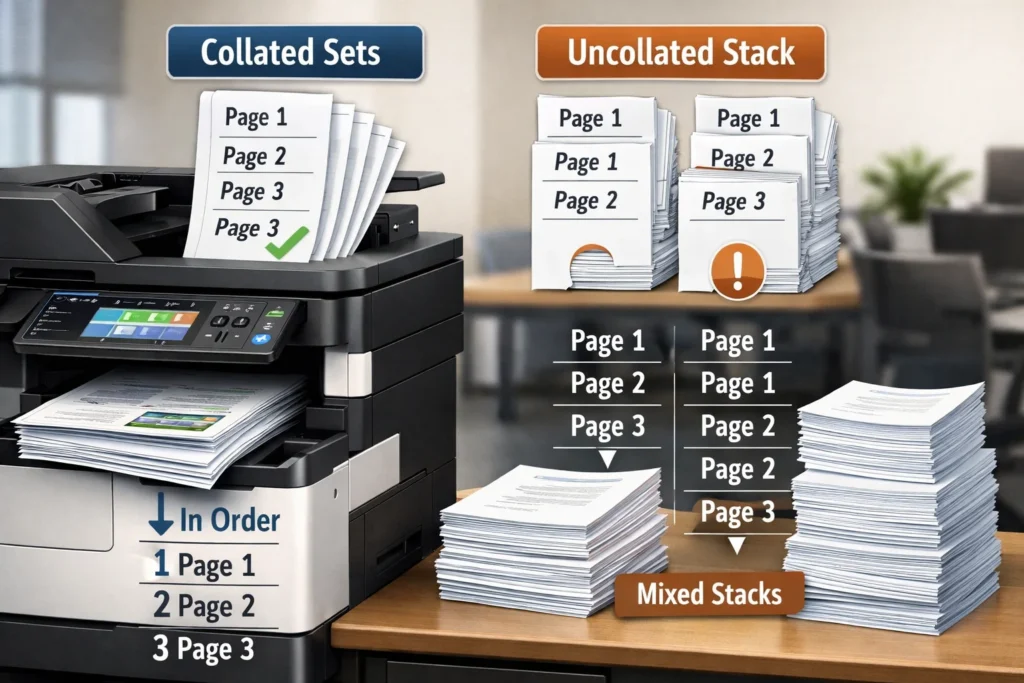
When printing, collate means arranging multiple-page documents in the correct page order for each complete set.
For example, if you print three copies of a 5-page document with collation turned on, the printer will produce:
- Copy 1: Pages 1-2-3-4-5
- Copy 2: Pages 1-2-3-4-5
- Copy 3: Pages 1-2-3-4-5
If collation is turned off, the printer prints:
- Page 1 three times
- Page 2 three times
- Page 3 three times, and so on.
Collating helps organize documents automatically and saves time when printing reports, booklets, presentations, or school assignments.
Why Understanding “Collate” Matters in Printing
Have you ever printed multiple copies of a document only to end up sorting pages manually into piles? That’s exactly the problem the collate setting solves.
Many people notice the “Collate” checkbox in printer settings but aren’t completely sure what it does. Whether you’re printing homework, office reports, training manuals, or business presentations, understanding this feature can save time, reduce mistakes, and make your documents look more professional.
The term may sound technical at first, but it’s actually simple once you see it in action.
What Does Collate Mean When Printing?
In printing, collating refers to organizing printed pages into sequential sets.
Imagine you have a 10-page report and need 5 copies:
With Collate ON
The printer outputs:
- Full Report #1 (Pages 1–10)
- Full Report #2 (Pages 1–10)
- Full Report #3 (Pages 1–10)
- Full Report #4 (Pages 1–10)
- Full Report #5 (Pages 1–10)
With Collate OFF
The printer outputs:
- Five copies of Page 1
- Five copies of Page 2
- Five copies of Page 3
- And so on.
This means you would need to sort the pages manually afterward.
Simple Example of Collated vs Uncollated Printing
Example Table: Collated vs Uncollated Printing
| Printing Type | Output Order | Best For |
|---|---|---|
| Collated | 1-2-3, 1-2-3, 1-2-3 | Reports, presentations, homework |
| Uncollated | 1-1-1, 2-2-2, 3-3-3 | Separating pages for binding or distribution |
| Automatic Collation | Printer organizes pages itself | Large office jobs |
| Manual Collation | User sorts pages manually | Small print jobs |
Origin of the Word “Collate”
The word collate comes from the Latin word collatus, meaning “to bring together” or “compare side by side.”
Originally, the term was used in publishing and document preparation long before modern printers existed. Editors and book publishers would manually collate pages to ensure books were assembled in the correct order.
As technology evolved, printers adopted the same concept digitally.
Today, “collate” is commonly used in:
- Home printing
- Office printing
- Publishing
- Copy centers
- Educational institutions
- Commercial printing services
How the Collate Option Works in Modern Printers
Most printers include a Collate checkbox in the print settings menu.
When enabled, the printer software automatically arranges pages into complete document sets.
Common Places You’ll Find the Collate Setting
- Microsoft Word
- Google Docs print settings
- PDF readers
- Printer driver settings
- Mac and Windows print dialogs
Usually, the option appears near:
- Number of copies
- Duplex printing
- Page orientation
- Color settings
When Should You Use Collate?
Collating is helpful whenever you print multi-page documents with multiple copies.
Use Collate When Printing:
- School assignments
- Office reports
- Business proposals
- Meeting handouts
- Instruction manuals
- Booklets
- Contracts
- Presentations
Example
If you print 20 copies of a 15-page employee handbook, collating prevents you from manually organizing 300 pages afterward.
That’s a huge time saver.
When You Should NOT Use Collate
There are situations where turning collate OFF makes more sense.
Avoid Collation When:
- You want stacks of the same page together
- You are separating pages for binding
- Different people need only certain pages
- You plan to assemble documents manually
- You are using industrial finishing equipment
Example
Teachers sometimes print worksheets uncollated so all Page 1 sheets stay together for easier stapling or classroom distribution.
What Does the Collate Icon Look Like?
Most printers use a small visual icon to represent collation.
Common Collate Symbols
Collated:
- Stacked pages in sequential order
- Example: 1-2-3 repeated
Uncollated:
- Separate repeated page numbers
- Example: 1-1-1 then 2-2-2
These icons help users quickly identify the setting without reading detailed descriptions.
Collate vs Uncollate: What’s the Difference?
Comparison Table: Collate vs Uncollate
| Feature | Collate | Uncollate |
|---|---|---|
| Page Order | Complete sets | Grouped identical pages |
| Organization | Automatic | Manual sorting needed |
| Best For | Reports and documents | Bulk page handling |
| Time Saving | Yes | Less efficient |
| Common Use | Offices and schools | Print shops and production |
Real-World Examples of Collated Printing
Understanding collating becomes easier with practical examples.
Example 1: Printing a School Report
You have:
- 6-page report
- 3 copies needed
Collated Output:
- 1-2-3-4-5-6
- 1-2-3-4-5-6
- 1-2-3-4-5-6
Perfect for handing in complete reports.
Example 2: Printing Flyers
You have:
- Two-sided flyer
- 100 copies
Collating usually doesn’t matter much because every page is identical.
Example 3: Office Meeting Packets
A manager prints:
- 12-page presentation
- 25 copies
Collation ensures each attendee receives a complete packet in order.
Does Collating Affect Printing Speed?
Yes, sometimes.
When collating large documents, printers may take slightly longer because they must organize pages carefully between copies.
However, modern printers handle collation efficiently, especially office laser printers.
Factors That Affect Speed
- Printer memory
- Document size
- Duplex printing
- Printer type
- Number of copies
For small print jobs, the speed difference is usually minimal.
Does Collate Use More Ink or Paper?
No. Collating does not change:
- Ink usage
- Toner usage
- Paper consumption
It only changes the order pages are printed in.
How to Turn Collate On or Off
The process is similar across most devices.
On Windows
- Open the document
- Press Print
- Select your printer
- Choose the number of copies
- Check or uncheck “Collate”
On Mac
- Open the file
- Select File → Print
- Expand print options
- Find “Collated”
- Enable or disable it
In Microsoft Word
- Click File → Print
- Adjust copy settings
- Toggle “Collated”
Common Printing Problems Related to Collation
Sometimes printers don’t collate correctly.
Possible Causes
- Printer driver issues
- Low printer memory
- Incorrect software settings
- Network printer delays
- Outdated firmware
Quick Fixes
- Restart the printer
- Update printer drivers
- Print fewer copies at once
- Use software collation instead of printer collation
Software Collation vs Printer Collation
There are actually two types of collation.
Comparison Table: Software vs Printer Collation
| Type | How It Works | Advantage |
|---|---|---|
| Software Collation | Computer organizes pages | Works on basic printers |
| Printer Collation | Printer hardware organizes pages | Faster for large jobs |
Most users never notice the difference, but businesses printing large volumes often rely on printer-based collation for efficiency.
Is Collating Important for Double-Sided Printing?
Absolutely.
When using duplex (double-sided) printing, collation becomes even more important because page order mistakes are harder to fix manually.
Collated duplex printing helps ensure:
- Proper booklet flow
- Correct front/back alignment
- Easier stapling
- Professional presentation
Related Printing Terms You Should Know
Understanding related terms makes printing settings less confusing.
Common Printing Terms
| Term | Meaning |
|---|---|
| Duplex Printing | Printing on both sides |
| Portrait | Vertical page orientation |
| Landscape | Horizontal page orientation |
| Staple | Printer automatically staples pages |
| Collate | Organizes pages into sets |
| Print Queue | List of pending print jobs |
Alternate Meanings of “Collate”
Although printing is the most common context today, “collate” can also mean:
- Comparing information from different sources
- Gathering data together
- Organizing materials systematically
Example Outside Printing
Researchers may collate survey results before analyzing data.
So the word generally relates to arranging or organizing information properly.
Professional Alternatives or Similar Terms
Depending on the context, people may use phrases like:
- Organize pages
- Assemble document sets
- Arrange copies
- Sequential printing
- Ordered printing
However, “collate” remains the standard technical term in printing.
Common Misunderstandings About Collating
Many people assume collating:
- Uses extra paper ❌
- Changes formatting ❌
- Automatically staples documents ❌
In reality, it simply changes the order pages are printed.
That’s it.
Why Offices and Schools Rely on Collation
Collating improves productivity significantly in environments with heavy printing needs.
Benefits of Collated Printing
- Saves time
- Reduces manual sorting
- Prevents missing pages
- Improves organization
- Creates professional document sets
- Helps during presentations and meetings
For busy offices, this small setting makes a surprisingly big difference.
FAQs
1. What does collate mean when printing?
Collate means printing multi-page documents in complete, ordered sets instead of grouped single pages.
2. What is the difference between collated and uncollated printing?
Collated prints full sets in order (1-2-3, 1-2-3), while uncollated prints grouped pages (1-1-1, 2-2-2).
3. When should I use collate?
Use collate when printing multiple copies of reports, assignments, presentations, or booklets.
4. Does collating change printing quality?
No, it only changes the order of pages, not the print quality.
5. Does collate use more ink or paper?
No, it uses the same amount of ink and paper; it only organizes the output.
6. Why is collate important?
It saves time and prevents manual sorting of pages after printing.
7. Can I turn collate on or off anytime?
Yes, you can easily enable or disable it in your printer settings before printing.
8. What happens if I forget to use collate?
Your pages may print out of order, and you will need to sort them manually.
Practical Tips for Using Collate Effectively
Best Practices
- Always preview print settings first
- Use collate for reports and presentations
- Double-check page order before large print jobs
- Combine collation with duplex printing for professional results
- Test one copy before printing dozens
These simple habits can prevent wasted paper and frustration.
Conclusion
So, what does collate mean when printing?
In simple terms, collating organizes multi-page documents into complete, correctly ordered sets. It’s one of the most useful printer settings for students, teachers, office workers, and anyone handling large print jobs.
When collate is turned on, your printer automatically assembles each copy in proper sequence, saving you from sorting pages manually. While the feature may seem small, it can dramatically improve organization, efficiency, and professionalism.
The next time you print reports, presentations, or assignments, take a quick look at the collate option—you’ll likely save yourself a lot of time and effort.
Discover More Related Articles:
- “NT” Mean in Gaming: GO, and Other Multiplayer Games for 2026
- Forced Air Mean in a House: A Homeowner’s Beginner Guide for 2026

Ryan Thompson is an experienced content writer specializing in slang terms, texting abbreviations, and word meanings. He writes for meanvoro.com, where he creates accurate and easy-to-understand language content for readers.