
Definition
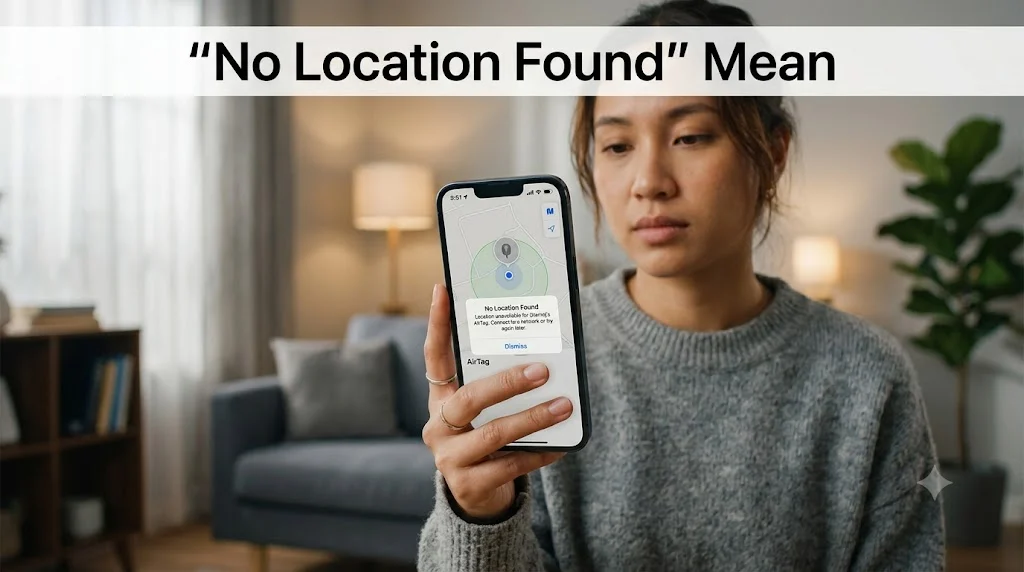
“No Location Found” means system cannot detect or retrieve the current location of the device or person at that moment.
You open Find My, tap on a friend or family member, and instead of a little dot on the map, you see it: “No Location Found.” Your mind immediately jumps to the worst. Did they turn their phone off on purpose? Are they ignoring you? Is something wrong?
Slow down. That message almost never means what you think it means.
“No Location Found” is one of the most misunderstood status messages in the Apple ecosystem. It’s not an accusation. It’s not a red flag. More often than not, it’s a boring technical hiccup that fixes itself in minutes. This guide breaks down exactly what it means, why it shows up, how it differs from similar messages, and what you can actually do about it.
What Does “No Location Found” Mean?
In the simplest possible terms: the device couldn’t share its location at that moment.
When Find My tries to pull up someone’s location, it sends a request to their device. That device needs two things to respond: an active internet connection and working Location Services. If either of those is missing, or if something else blocks the signal, Find My can’t get a location. That’s when you see “No Location Found.”
It’s a temporary status. It tells you what the device couldn’t do right now, not what the person is doing or intending. The message appears in three main places:
- The Find My app on iPhone, iPad, and Mac
- The iMessage location sharing panel
- The Family Sharing location view
Think of it like trying to call someone and getting no ring, no voicemail, just silence. It doesn’t tell you why. It just tells you the call didn’t connect.
“No Location Found doesn’t mean the person disappeared. It means the connection between Find My and their device temporarily failed.”
“No Location Found” vs “Location Not Available”: What’s the Actual Difference?
This is the question most articles dodge. It matters because the two messages point to different problems.
| Status | What It Actually Means | Most Likely Cause |
|---|---|---|
| No Location Found | Find My never retrieved a location in this session | Device is offline, GPS is off, or no network |
| Location Not Available | Location was retrieved before but can’t update now | Location Services turned off, privacy change |
| Sharing Paused | The person manually paused their location sharing | User made a deliberate choice |
| No Location Shared With You | This person never gave you location access | Sharing was never set up or was revoked |
Here’s the practical difference. “No Location Found” usually means something technical went wrong. “Location Not Available” often means location sharing is still active, but the update stream stopped, which can happen if someone turns off Location Services in Settings, signs out of iCloud, or updates their iOS at that moment.
Neither message is definitive proof that someone is dodging you. Both can happen completely by accident.
Where Does “No Location Found” Show Up?
Before diving into causes, it helps to know exactly where this message appears and what each context means.
Find My App (iPhone, iPad, Mac) This is the most common place people see it. When you tap a contact in the People tab and see “No Location Found” instead of a map pin, Find My simply couldn’t reach that person’s device in its last polling attempt.
iMessage Location Sharing Inside a conversation, you can share live location. If sharing is active but the device goes offline, the iMessage thread will show “No Location Found” where the map preview used to be.
Family Sharing Location Panel Parents using Family Sharing to monitor their kids’ locations see this message most often because kids’ devices go into unexpected states: low battery, school Wi-Fi blocks, or phone left at home.
Apple Maps and Google Maps (Your Own Device) Here the context shifts. When Maps shows “No Location Found” or “Location Unavailable,” it’s talking about your own GPS signal, not someone else’s device. The fix is different in this case.
The Real Reasons You’re Seeing “No Location Found”
There isn’t one single cause. There are about eight common ones, and knowing which applies to your situation saves you a lot of guesswork.
The Device Is Off or Out of Battery
This is the most straightforward scenario. When a phone shuts down, it can’t ping Find My servers. No signal gets sent. Find My waits, gets no response, and displays “No Location Found.”
If the device had Send Last Location enabled before it died, you’ll still see a gray timestamp with the last known position. That’s a useful clue: if you see a last-known location with a timestamp, the device was on at some point recently and the battery likely died.
Airplane Mode Is On
Airplane Mode kills all wireless connections: cellular, Wi-Fi, and Bluetooth. A device in Airplane Mode is essentially invisible to Find My. The moment Airplane Mode turns off and a connection is restored, location updates resume automatically.
No Internet Connection
Location data travels over the internet, not just GPS. Even if GPS is technically working, the device needs Wi-Fi or cellular data to transmit that location to Apple’s servers so Find My can retrieve it.
Common scenarios where this triggers:
- The person is in a basement, elevator, or building with no signal
- Their cellular plan ran out of data
- They’re connected to a Wi-Fi network that’s not working
- They’re traveling internationally without roaming enabled
GPS Signal Is Weak
GPS relies on satellite signals. Those signals get blocked by dense buildings, thick concrete, mountain terrain, or even heavy storm clouds. When GPS can’t triangulate a precise position, the device has nothing to report, and Find My reflects that with “No Location Found.”
iPhones use a combination of GPS, Wi-Fi positioning, Bluetooth beacons, and cellular tower triangulation to determine location. If all of those are degraded at once, like in a subway tunnel or underground parking garage, the result is a location failure.
Location Services Are Disabled
Location Services is the master switch for all location features on an iPhone. It lives at Settings > Privacy & Security > Location Services. If someone turns this off, every app including Find My loses location access immediately.
Even if Find My itself is toggled on, Location Services being off overrides everything. The result from your end: “No Location Found.”
Find My Is Turned Off on Their Device
Find My has its own toggle separate from Location Services. It’s at Settings > [Name] > Find My > Find My iPhone. When this is off, Find My can’t locate that device at all, regardless of GPS or internet status.
This is one of the few scenarios where “No Location Found” actually reflects a deliberate setting change, though it doesn’t tell you whether the person turned it off intentionally or if it got switched off accidentally during a settings audit or iOS update.
The Apple ID Was Signed Out
Find My location sharing is tied directly to the Apple ID and iCloud session. If someone signs out of their Apple ID, even temporarily, location sharing breaks. You’ll see “No Location Found” until they sign back in and re-enable location sharing.
This often happens right after someone gets a new iPhone and sets it up, or if they’re troubleshooting an unrelated iCloud issue.
A Software Glitch
iOS isn’t perfect. After major iOS updates, it’s common for Find My to temporarily malfunction. The app may have stale cache data, a failed background refresh, or a broken connection to Apple’s servers. A simple restart of the device usually clears it.
Known software glitch triggers:
- Fresh iOS update that just completed
- Background App Refresh disabled for Find My
- Find My app hasn’t been opened in a long time
- iCloud sync is stuck or paused
The Device Was Reset or Erased
If someone did a factory reset, their Find My connection severs completely. You’ll see “No Location Found” because the device is no longer associated with their Apple ID until they complete setup again.
No Location Found on iPhone: A Platform Breakdown
Your Own iPhone Shows “No Location Found” in Maps
This is a completely different scenario from tracking someone else. When your own device can’t find its location in Apple Maps or Google Maps, the culprit is usually one of these:
- Location permission denied for Maps. Go to Settings > Privacy & Security > Location Services > Maps and set it to “While Using the App” or “Always.”
- Weak GPS signal. Step outside or near a window and wait 30 seconds for a fresh GPS lock.
- Location Services turned off entirely. The master switch in Settings > Privacy & Security > Location Services needs to be on.
Checking Find My on Mac vs iPhone
Find My syncs across all your Apple devices through iCloud, so the status you see on your Mac’s Find My is the same data as your iPhone. If you see “No Location Found” on one device, you’ll see it on both. There’s no advantage to checking on Mac versus iPhone.
However, refreshing the location works differently. On iPhone, tap the person’s name and pull down to refresh. On Mac, click their name and look for a refresh button. Both pull fresh data from Apple’s servers.
Android Equivalent: “Location Unavailable”
Android uses Google’s Find My Device instead of Apple’s Find My. The equivalent message is “Location unavailable” or “Last seen [time].” The causes mirror iOS almost exactly: no network connection, GPS off, phone off, or location permissions revoked for Find My Device.
The key difference is that Android doesn’t have a “Send Last Location” feature enabled by default like iPhone does. You need to enable it manually in Find My Device settings.
How to Fix “No Location Found”
If It’s Your Own Device
Step 1: Check Location Services
Go to Settings > Privacy & Security > Location Services. The toggle must be green (on). Scroll down to Find My and make sure it’s set to “Always” or “While Using.”
Step 2: Verify Find My Is Enabled
Go to Settings > [Your Name] > Find My > Find My iPhone. Toggle it on if it’s off. While you’re there, enable Send Last Location — this sends your phone’s last known location to Apple’s servers when the battery hits critical levels.
Step 3: Check Your Internet Connection
Pull down the Control Center. Is Wi-Fi or cellular active? Try loading a webpage to confirm the connection actually works, not just that the icon is showing. If you’re on Wi-Fi and it’s not working, switch to cellular data temporarily.
Step 4: Disable and Re-enable Airplane Mode
Even if Airplane Mode isn’t on, toggling it off and on forces the device to re-establish all wireless connections. It takes about 10 seconds and fixes a surprising number of connectivity glitches.
Step 5: Restart the Device
A restart clears app cache, resets network connections, and resolves most software glitches. On iPhone X and later, hold the side button and volume down together, then swipe to power off. Hold the side button to restart.
Step 6: Sign Out and Back Into Apple ID
Go to Settings > [Your Name] > scroll to the bottom and tap Sign Out. Sign back in with your Apple ID. This refreshes the iCloud session that Find My depends on.
Step 7: Update iOS
Go to Settings > General > Software Update. Apple regularly patches location bugs in point releases. If your iOS is more than a version or two behind, update it.
If You’re Trying to See Someone Else’s Location
What You Can Check on Your End:
- Open Find My > People tab. Is the person listed? If they’re not there at all, they never shared their location with you or have removed you.
- Is the person’s name there but showing “No Location Found”? That’s a connectivity issue on their end, not yours.
- Wait a few minutes. Temporary outages usually resolve on their own.
What They Need to Check on Their End:
Share this checklist with them:
- Is Location Services on? (Settings > Privacy & Security > Location Services)
- Is Find My enabled? (Settings > [Name] > Find My > Find My iPhone)
- Is Share My Location on? (Settings > [Name] > Find My > Share My Location)
- Are they connected to Wi-Fi or cellular data?
- Have they recently signed out of Apple ID?
Remove and Re-add the Sharing Connection
Stale sharing sessions sometimes get stuck. The cleanest fix:
- Have them open Find My > Me tab > Stop Sharing My Location
- Then re-enable Share My Location and send a fresh share to you
- Accept the share request on your end
This creates a clean new session and fixes persistent “No Location Found” errors that survive restarts.
The Privacy Angle: When “No Location Found” Is Intentional
Here’s the honest truth that most tech articles won’t say plainly: “No Location Found” can be intentional, but you can’t tell from the message alone.
Someone who doesn’t want to be tracked could:
- Turn off Location Services
- Toggle off Find My
- Turn on Airplane Mode
- Simply turn off their phone
All of these produce “No Location Found.” But so do a dead battery, a bad cellular signal, and a software bug. The message itself gives you no way to distinguish between a technical failure and a deliberate choice.
What you can observe:
- If it happens suddenly and consistently for days, that’s more likely an intentional change
- If it was working before and briefly dropped, that’s almost certainly technical
- If it coincides with them responding to texts or calls normally, their phone is clearly on, which suggests the location issue is intentional
iOS also includes privacy tools that feel related but aren’t. Focus Mode doesn’t affect location sharing. Low Power Mode doesn’t either. Neither does Do Not Disturb. Only the specific settings mentioned above actually produce “No Location Found.”
Does “No Location Found” Mean Someone Blocked You?
No. Blocking someone on iPhone doesn’t produce this message.
When you block someone, they’re removed from your Find My contacts entirely. You won’t see their name in the People tab at all. If you can see their name but see “No Location Found” next to it, you have not been blocked.
Blocking specifically affects:
- Calls and texts going to voicemail or disappearing
- FaceTime calls not connecting
- Find My contact removed entirely
“No Location Found” with their name still visible means something technical happened, not that they blocked you.
Does “No Location Found” Mean Someone Turned Off Their Phone?
Maybe. But not necessarily.
A turned-off phone does produce “No Location Found.” So does:
- A dead battery
- Airplane Mode
- No cellular or Wi-Fi signal
- Location Services disabled
- Find My disabled
The only way to confirm a phone is completely off is if no other communication goes through either — texts show no delivery confirmation, calls go straight to voicemail after one ring (not multiple rings). Even then, Airplane Mode produces identical behavior.
If you enabled Send Last Location, you’ll at least see when the device was last on. A timestamp saying “Last seen 3 hours ago” tells you the phone was alive 3 hours ago but is unreachable now.
Quick-Reference Summary
Here’s everything condensed for fast reference:
What “No Location Found” means: The device couldn’t share its location at that moment. It’s almost always temporary.
Top causes:
- Phone off or dead battery
- Airplane Mode
- No internet connection (Wi-Fi or cellular)
- Weak GPS signal
- Location Services disabled
- Find My disabled
- Apple ID signed out
- Software glitch after iOS update
It does NOT mean:
- You were blocked
- The person is definitely avoiding you
- Location sharing was permanently revoked
Best fixes (device owner):
| Fix | Where to Do It |
|---|---|
| Check Location Services | Settings > Privacy & Security > Location Services |
| Enable Find My | Settings > [Name] > Find My > Find My iPhone |
| Enable Send Last Location | Settings > [Name] > Find My > Send Last Location |
| Toggle Airplane Mode | Control Center |
| Restart device | Hold side + volume down, swipe to power off |
| Update iOS | Settings > General > Software Update |
| Re-sign into Apple ID | Settings > [Name] > Sign Out, then sign back in |
Fastest fix for a stuck Find My connection: Have the person turn Share My Location off and back on, then re-send a fresh share request to you.
FAQs
Does “No Location Found” mean the person is avoiding me?
Not automatically. It most often means a technical issue: no signal, dead battery, or a settings glitch. Only sustained and deliberate patterns over multiple days suggest intentional avoidance.
Can I see someone’s last known location when Find My shows “No Location Found”?
Yes, if they have Send Last Location enabled. Find My will show a gray location pin with a timestamp like “Last seen 2 hours ago at [location].”
Why does Find My say “No Location Found” even though the person is right next to me?
This happens more than you’d think. It usually means their phone’s internet connection is temporarily broken, or Find My’s background refresh hasn’t run recently.
How often does Find My update location?
Find My updates location roughly every few minutes when the device is active. It doesn’t update in real time like some third-party apps.
Why does my own iPhone show “No Location Found” in Maps?
Your GPS may not have a lock yet, or location permissions for Maps are denied. Go to Settings > Privacy & Security > Location Services > Maps and set it to “While Using” or “Always.”
Is “No Location Found” the same on Android?
Functionally yes. Google Find My Device shows “Location unavailable” or “Last seen [time]” for the same reasons. The fix process is essentially identical: check location permissions, verify internet connection, restart the device.
Can I fix “No Location Found” for someone else without touching their phone?
No. The fix always requires changes on the device that’s not sharing location. You can guide them through the steps remotely, but you can’t push a fix from your end.
Does “No Location Found” affect the other person’s Find My features?
No. If someone’s device is showing “No Location Found” to you, they can still use Find My to locate their own devices. It only affects outbound location sharing.
Conclusion
“No Location Found” sounds alarming. It really isn’t. In the vast majority of cases, it’s a device that went offline, a GPS signal that dropped, or a background refresh that didn’t fire in time. Give it a few minutes. If it persists, run through the checklist above.
The most important thing you can do right now, before you ever need this information in a stressful moment: enable Send Last Location on your own device. It’s off by default and most people don’t know it exists. With it on, Find My always has a fallback position even when your phone dies. That single toggle has saved more than a few panicked searches.
If you’re on the receiving end of someone seeing “No Location Found” for you, walk through your Location Services and Find My settings. One misconfigured toggle is almost always the culprit and it takes about 30 seconds to find and fix.
Discover More Related Articles:
- Womp Womp Mean | The Sound Effect Turned Internet Expression In 2026
- Pushin P Mean | The Viral Phrase Everyone Is Using Online In 2026

Madison Taylor is an experienced content writer who focuses on researching and explaining word meanings, slang, and texting terms. She writes for meanvoro.com, creating clear and accurate to help readers understand language easily.