
Definition:
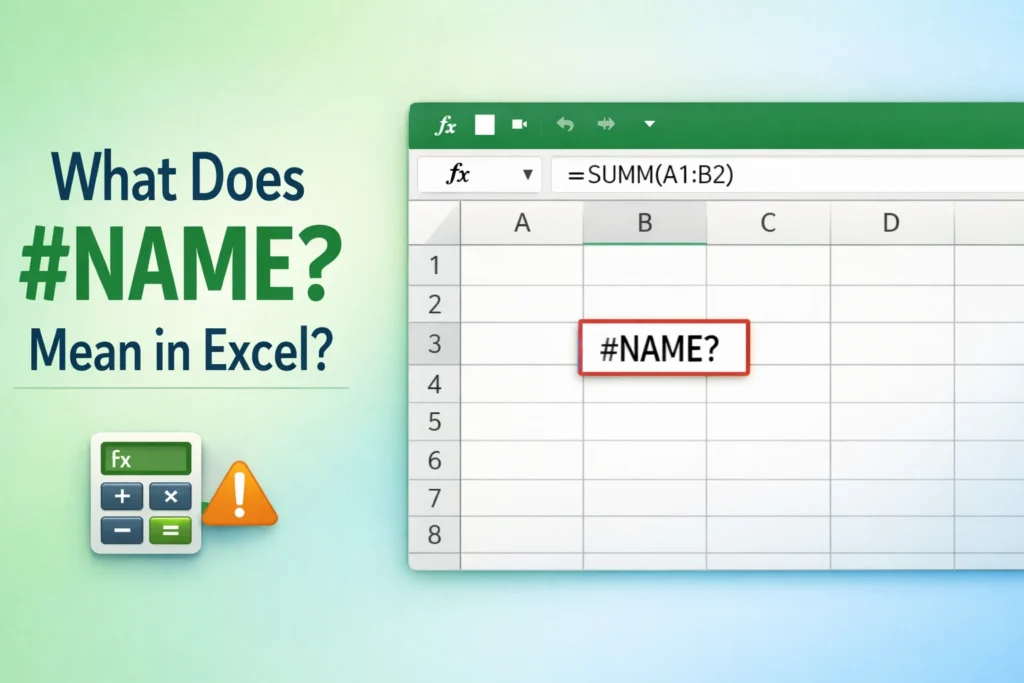
#NAME?in Excel means the formula contains text Excel doesn’t recognize.
This usually happens because of a misspelled function, missing quotation marks around text, undefined named ranges, or incorrect syntax in a formula.
If you’ve ever typed a formula and Excel answered back with #NAME?, you’re not alone. This error is common even for experienced users and the good news is that it’s usually easy to fix once you know what Excel is complaining about.
In this comprehensive guide, we’ll break down what #NAME? means in Excel, why it appears, how to fix it step by step, and how to avoid it in the future. We’ll also compare it with similar Excel errors, provide real-world examples, include a handy table, and answer the most common FAQs people search for online.
What Does #NAME Mean in Excel?
In Excel, the #NAME? error appears when Excel cannot understand part of a formula.
Excel reads formulas very literally. If it sees something it doesn’t recognize such as a misspelled function name, unquoted text, or an undefined name it returns #NAME? to tell you:
“I don’t know what this is.”
Think of it as Excel asking you to double-check your spelling, syntax, or references.
Why the #NAME? Error Exists
Excel formulas rely on:
- Correct function names
- Proper punctuation
- Defined names and ranges
- Quotation marks for text values
When any of these rules are broken, Excel can’t interpret the formula correctly. Instead of guessing, it throws the #NAME? error to prevent incorrect calculations.
This strict behavior is actually a good thing it helps you catch mistakes early.
Common Causes of #NAME? in Excel
Let’s look at the most frequent reasons this error shows up.
1. Misspelled Function Names (Most Common)
Excel functions must be spelled exactly right.
Incorrect:
=SUME(A1:A10)
Correct:
=SUM(A1:A10)
Because SUME is not a valid function, Excel returns #NAME?.
2. Missing Quotation Marks Around Text
Text values in formulas must be enclosed in double quotes.
Incorrect:
=IF(A1=Yes, "Approved", "Rejected")
Correct:
=IF(A1="Yes", "Approved", "Rejected")
Without quotes, Excel thinks Yes is a named range or function and since it doesn’t exist, you get #NAME?.
3. Using Undefined Named Ranges
Named ranges are powerful, but they must be defined before use.
Example:
=SUM(SalesData)
If SalesData hasn’t been defined in the workbook, Excel shows #NAME?.
4. Incorrect Function Language or Regional Settings
Excel function names differ by language and region.
Example:
- English Excel:
=SUM(A1:A10) - Some localized versions may use a different name or separator
Using the wrong function name for your Excel version can trigger #NAME?.
5. Missing or Incorrect Syntax
Small syntax issues can confuse Excel.
Example:
=IF(A1>10 SUM(A1:A5))
Missing commas, parentheses, or operators can cause Excel to misread parts of the formula.
6. Typing Cell References Incorrectly
Excel expects specific formats for cell references.
Incorrect:
=SUM(A1 A10)
Correct:
=SUM(A1:A10)
Without the colon, Excel doesn’t understand the range.
Labeled Example Table: #NAME? Errors and Fixes
| Example Formula | Why #NAME? Appears | Correct Formula |
|---|---|---|
=SUME(A1:A5) | Function misspelled | =SUM(A1:A5) |
=IF(A1=Yes,1,0) | Text not in quotes | =IF(A1="Yes",1,0) |
=AVERAGE(Sales) | Named range not defined | Define Sales or use cell range |
=TOTAL(A1:A5) | Function doesn’t exist | =SUM(A1:A5) |
=IF(A1>10SUM(A1:A5)) | Missing comma | =IF(A1>10, SUM(A1:A5)) |
Real-World Usage Examples of #NAME?
Friendly / Learning Context 😊
You’re learning Excel and experimenting with formulas. #NAME? is Excel’s way of teaching you the rules.
“Hey! Something here doesn’t match my dictionary.”
Neutral / Professional Context
In a workplace spreadsheet, #NAME? often signals a typo or broken named range after copying formulas between files.
Negative / Dismissive Context 😬
In reports or dashboards, #NAME? can look unprofessional and damage trust in your data especially if clients or managers see it.
How to Fix #NAME? in Excel
Follow this checklist whenever you see #NAME?:
- Check function spelling
- Use Excel’s formula suggestions (type
=and start typing)
- Use Excel’s formula suggestions (type
- Look for missing quotation marks
- All text values must be in
"double quotes"
- All text values must be in
- Verify named ranges
- Go to Formulas → Name Manager
- Confirm the name exists and refers to valid cells
- Inspect commas, parentheses, and operators
- Make sure nothing is missing
- Confirm your Excel language/version
- Use function names supported by your region
- Use Formula Auditing
- Formulas tab → “Evaluate Formula”
#NAME? vs Other Excel Errors (Comparison)
Many Excel errors look confusingly similar. Here’s how #NAME? compares to others.
| Error | What It Means | Key Difference |
|---|---|---|
#NAME? | Excel doesn’t recognize text | Name or spelling issue |
#VALUE! | Wrong data type used | Calculation issue |
#REF! | Invalid cell reference | Deleted or moved cells |
#DIV/0! | Division by zero | Math error |
#N/A | Value not available | Lookup failure |
Quick tip:
If Excel recognizes the formula but can’t calculate it → not #NAME?.
If Excel doesn’t recognize part of the formula → likely #NAME?.
Alternate Meanings of #NAME
In Excel, #NAME? has only one official meaning an unrecognized name in a formula.
Outside Excel, #NAME has no standard technical meaning, so context always matters. In spreadsheets, though, it’s strictly an error message.
Polite & Professional Alternatives to Showing #NAME?
Instead of displaying raw errors in reports, you can hide or replace them.
Use IFERROR (Recommended)
=IFERROR(A1/B1, "Check data")
Or Show a Blank Cell
=IFERROR(A1/B1, "")
Or Display a Friendly Message
=IFERROR(SUM(SalesData), "Data not available")
These approaches keep dashboards clean and professional.
Usage Tips to Avoid #NAME? Errors
- ✅ Always select functions from Excel’s autocomplete list
- ✅ Use Name Manager to review named ranges
- ✅ Wrap text values in double quotes
- ✅ Avoid typing formulas manually when possible
- ✅ Test formulas on sample data before final reports
Small habits like these prevent most #NAME? issues
FAQs
1. What exactly triggers #NAME? in Excel?
#NAME? appears when Excel doesn’t recognize text in a formula usually due to misspellings, missing quotes, or undefined names.
2. Is #NAME? a serious Excel error?
No. It’s a syntax or naming error, not a data corruption issue. It’s easy to fix.
3. Can #NAME? affect calculations?
Yes. Any formula showing #NAME? will not return a valid result until corrected.
4. How do I quickly find the cause of #NAME??
Use Formulas → Evaluate Formula to step through the calculation and see where Excel gets confused.
5. Does #NAME? mean my Excel file is broken?
Not at all. It only means that one formula has an issue.
6. Can macros or VBA cause #NAME? errors?
Indirectly, yes if VBA inserts formulas with incorrect names or syntax.
7. Why do I get #NAME? after copying a formula?
The formula may reference a named range that doesn’t exist in the new workbook.
8. What’s the fastest way to prevent #NAME? errors?
Rely on Excel’s built-in function suggestions and double-check all text values are quoted.
Conclusion:
The #NAME? error in Excel is a clarity problem, not a calculation problem. Excel is telling you it doesn’t recognize something in your formula.
Remember these essentials:
- Misspellings cause most
#NAME?errors - Text must always be in quotation marks
- Named ranges must exist before use
- Syntax matters commas, parentheses, and colons are critical
Once you learn to read #NAME? as a helpful hint instead of an error, troubleshooting Excel becomes faster and far less frustrating.
Discover More Related Articles:
- Lamentation Mean in the Bible: Why It Matters for Christians in 2026
- Adam Mean in the Bible: Symbolism, and Impact in 2026

Madison Taylor is an experienced content writer who focuses on researching and explaining word meanings, slang, and texting terms. She writes for meanvoro.com, creating clear and accurate to help readers understand language easily.