
Definition
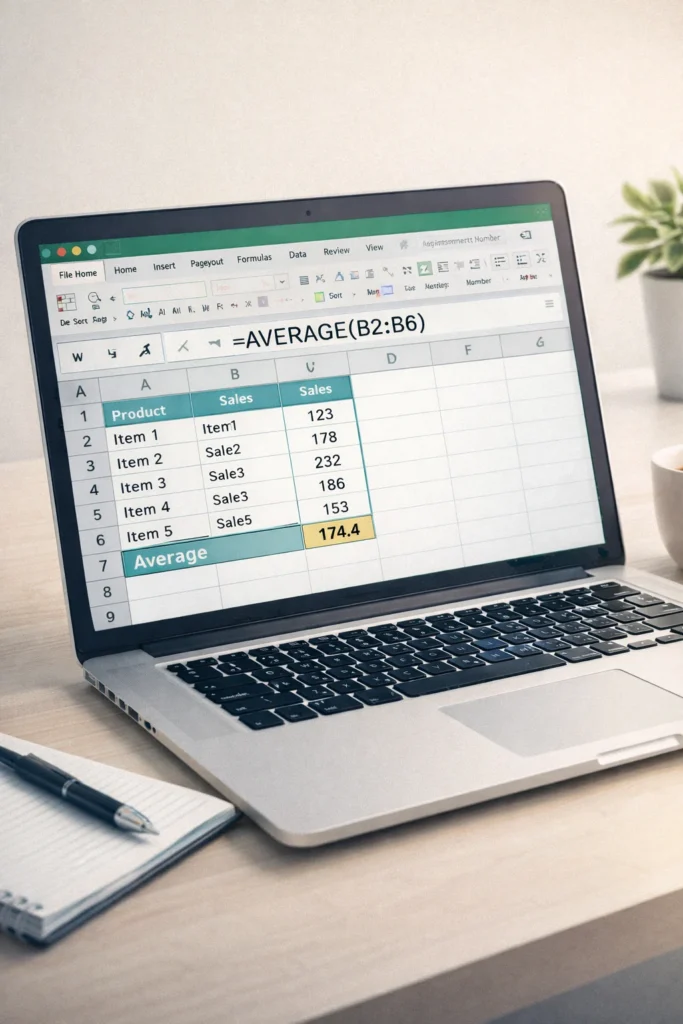
Calculating mean in Excel means finding the average value of a set of numbers using Excel functions such as AVERAGE, AVERAGEIF, or AVERAGEIFS. Excel adds all the numeric values and divides the total by how many values are included.
Calculating mean in Excel is one of the most common and useful data analysis tasks. Whether you are working with exam scores, sales figures, survey results, or daily expenses, Excel allows you to find the mean quickly, accurately, and without complicated math.
If you have a long list of numbers, calculating the mean manually can be slow and error-prone. Excel simplifies this process with built-in formulas that work instantly and update automatically when your data changes.
Knowing how to calculate the mean in Excel helps you:
- Understand overall trends in data
- Compare performance across groups
- Make better decisions using accurate averages
From students and teachers to accountants and analysts, this skill is essential in everyday work.
What Does “Mean” Mean in Excel?
In mathematics and statistics, the mean is another word for average.
The basic formula is:
Sum of all values ÷ Total number of values
Excel performs this calculation automatically using formulas, saving time and reducing mistakes.
Origin and Popularity of Calculating Mean in Excel
Origin of the Mean
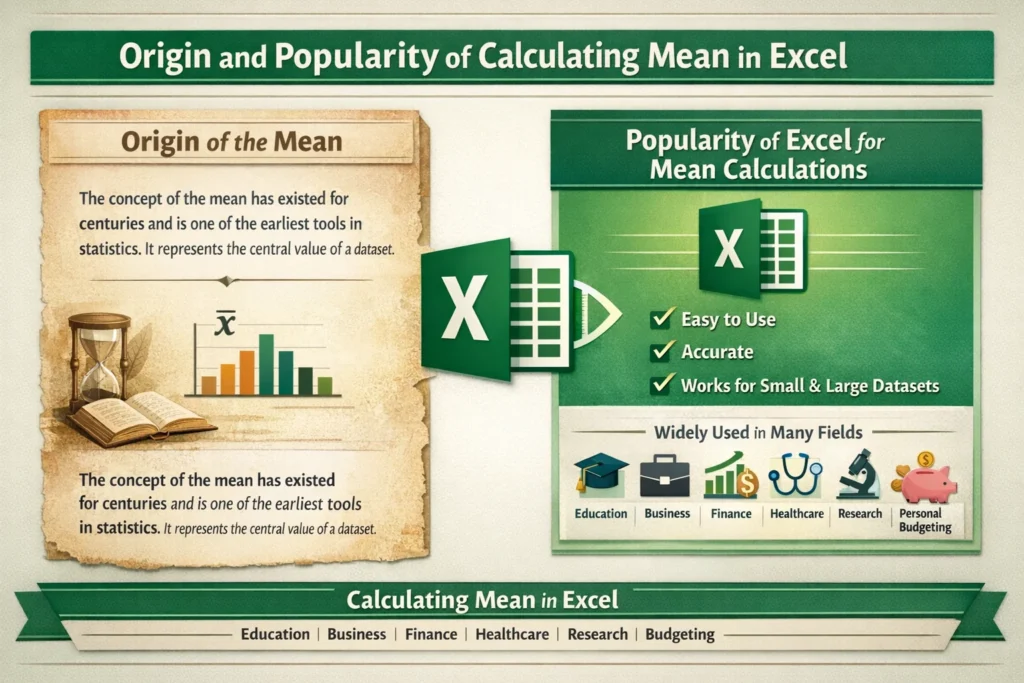
The concept of the mean has existed for centuries and is one of the earliest tools in statistics. It represents the central value of a dataset.
Popularity of Excel for Mean Calculations
Since Microsoft Excel became widely available, it has become one of the most popular tools for calculating averages because it is:
- Easy to use
- Accurate
- Suitable for small and large datasets
Excel is now commonly used to calculate mean values in education, business, finance, healthcare, research, and personal budgeting.
How to Calculate Mean in Excel
Method 1: Using the AVERAGE Function
This is the most common and beginner-friendly method.
Syntax
=AVERAGE(number1, number2, …)
Example
If your numbers are in cells A1 to A5:
=AVERAGE(A1:A5)
Excel will calculate the mean by adding all values and dividing by the count.
Important notes:
- Blank cells are ignored
- Text values are ignored
- Zero values are included
Example
| Name | Score |
| Ali | 78 |
| Sara | 85 |
| Ahmed | 92 |
| Fatima | 88 |
| Zain | 77 |
Formula Used
=AVERAGE(B2:B6)
Result
84
This means the average score of the students is 84.
Method 2: Calculating Mean with a Condition (AVERAGEIF)
Sometimes you only want to include specific values.
Example
Calculate the mean of scores greater than 80.
=AVERAGEIF(B2:B6, “>80”)
Excel will only include values that meet the condition.
Method 3: Calculating Mean with Multiple Conditions
AVERAGEIFS allows more advanced filtering.
Example
Calculate average sales where:
- Region is East
- Sales are greater than 10,000
=AVERAGEIFS(C2:C20, A2:A20, “East”, C2:C20, “>10000”)
Real-World Uses of Calculating Mean in Excel
Education
- Average marks
- Class performance analysis
Business
- Average monthly revenue
- Customer spending patterns
Finance
- Mean expenses
- Average investment returns
Healthcare
- Average patient waiting time
- Mean test results
Daily Life
- Average household costs
- Mean exercise duration
Tone-Based Usage Examples
Friendly tone
“Let’s calculate the mean in Excel to see how everyone performed.”
Neutral professional tone
“The mean value was calculated in Excel using the AVERAGE function.”
Slightly dismissive tone
“Instead of guessing, calculate the mean in Excel and check the real numbers.”
Common Mistakes When Calculating Mean in Excel
- Selecting the wrong range
- Including unwanted zero values
- Forgetting filtered or hidden rows
- Using AVERAGE instead of AVERAGEIF
Tip: Always double-check your selected cells before pressing Enter.
Calculating Mean Compared with Similar Terms
| Term | Meaning | Excel Function |
| Mean | Average of all values | AVERAGE |
| Median | Middle value in sorted data | MEDIAN |
| Mode | Most frequent value | MODE |
| Weighted Mean | Average with importance | SUMPRODUCT |
Mean vs Median vs Mode
- Mean is best when data is evenly distributed
- Median is better when data has extreme values
- Mode is useful for identifying common values
For example, income data often uses the median rather than the mean.
Alternate Meanings of “Mean”
Outside of mathematics, “mean” can also mean:
- Unkind or rude behavior
- To intend or signify something
In Excel and statistics, the word always refers to the average.
Professional Alternatives to the Word “Mean”
In reports or formal writing, you can use:
- Average value
- Arithmetic average
- Central value
Example:
“The average monthly sales were calculated using Excel.”
Best Practices for Calculating Mean in Excel
- Clean your data first
- Remove unnecessary values
- Choose the correct average function
- Label results clearly
- Combine averages with charts for better insights
FAQs
1. What is the fastest way to calculate mean in Excel?
Use the AVERAGE function with a selected range.
2. Does Excel ignore blank cells?
Yes, blank cells are ignored automatically.
3. Are zero values included in the mean?
Yes, zeros are included unless excluded manually.
4. Can Excel calculate mean across multiple columns?
Yes, you can select multiple ranges in one formula.
5. How do I calculate mean for filtered data only?
Use the SUBTOTAL function with filtered data.
6. What is the difference between AVERAGE and AVERAGEIF?
AVERAGE includes all values, AVERAGEIF applies a condition.
7. Is Excel accurate for mean calculations?
Yes, Excel provides reliable and accurate results.
8. Which function should beginners start with?
The AVERAGE function is best for beginners.
Conclusion
Calculating mean in Excel is a basic yet powerful skill that helps you understand data quickly and accurately. With simple formulas like AVERAGE, AVERAGEIF, and AVERAGEIFS, Excel makes it easy to work with numbers of any size.
Discover More Related Articles:
- B Width Mean in Shoes: Fit, Sizing, and Comfort Tips for 2026
- Repentance Mean in the Bible: Powerful Truth Most People Miss In 2026

Madison Taylor is an experienced content writer who focuses on researching and explaining word meanings, slang, and texting terms. She writes for meanvoro.com, creating clear and accurate to help readers understand language easily.