

How to get mean in Excel means calculating the average value of a set of numbers using built-in formulas like
AVERAGE, or manually summing values and dividing by the count. It’s one of the most common statistical tasks used in spreadsheets for data analysis, reporting, and decision-making.
Calculating averages is one of the most common tasks when working with data, whether you’re tracking student grades, analyzing sales figures, or reviewing performance metrics. In Microsoft Excel, learning how to get mean in Excel can save you hours of manual calculation and instantly provide insights into your data. 🖥️💡
Whether you’re a beginner just starting with spreadsheets or a professional handling large datasets, understanding the mean and how Excel calculates it gives you a clearer picture of trends and patterns.
In this guide, we’ll break down the simplest methods, explore real-world examples, compare related terms, and share tips to ensure your calculations are accurate every time.
What Does “Mean” Mean in Excel?
In Excel, the mean refers to the average of a group of numbers. It’s calculated by:
- Adding all values together
- Dividing the total by the number of values
For example:
If you have numbers 10, 20, 30, the mean is:
👉 (10 + 20 + 30) ÷ 3 = 20
Excel simplifies this with formulas, so you don’t have to calculate manually.
Why Is Calculating Mean in Excel Important?
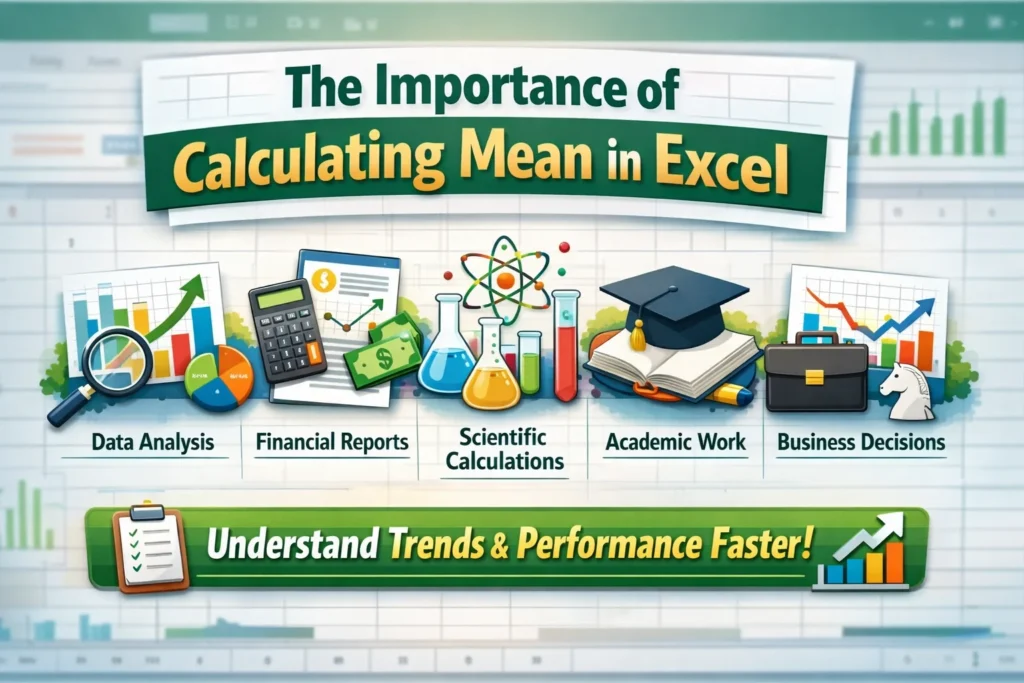
The mean is widely used in:
- 📊 Data analysis
- 📈 Financial reports
- 🧪 Scientific calculations
- 🏫 Academic work
- 📉 Business decision-making
Whether you’re tracking sales, marks, or performance metrics, knowing how to calculate the mean helps you quickly understand trends.
How to Get Mean in Excel
Method 1: Using the AVERAGE Function (Most Common)
This is the easiest and most popular method.
Formula:
=AVERAGE(A1:A10)
Steps:
- Select an empty cell
- Type
=AVERAGE( - Select the range of cells (e.g., A1:A10)
- Press Enter
✅ Excel will instantly return the mean value.
Method 2: Manual Formula (SUM ÷ COUNT)
If you want to understand the logic:
Formula:
=SUM(A1:A10)/COUNT(A1:A10)
How it works:
SUMadds all valuesCOUNTcounts numeric cells
👉 This method gives the same result as AVERAGE.
Method 3: Using AutoSum Dropdown
- Click on a blank cell
- Go to Home → AutoSum ▼
- Select Average
- Highlight your data
- Press Enter
⚡ Fast and beginner-friendly!
Example Table: Calculating Mean in Excel
| Student | Marks |
|---|---|
| Ali | 75 |
| Sara | 85 |
| Ahmed | 90 |
| Zoya | 80 |
Formula Used:
=AVERAGE(B2:B5)
Result:
👉 Mean = 82.5
Different Types of Mean in Excel

Excel supports different variations of mean depending on your needs:
1. Arithmetic Mean
- Standard average
- Formula:
=AVERAGE(range)
2. Weighted Mean
Used when values have different importance.
Formula:
=SUMPRODUCT(A1:A5,B1:B5)/SUM(B1:B5)
3. Conditional Mean (AVERAGEIF)
Average based on a condition.
Example:
=AVERAGEIF(A1:A10, ">50")
👉 Averages only values greater than 50.
Real-World Usage of Mean in Excel
Here’s where people commonly use it:
- 💰 Finance: Average expenses or revenue
- 📚 Education: Student grades
- 🏢 Business: Employee performance
- 🛒 E-commerce: Average order value
- 📊 Marketing: Campaign performance
Examples with Tone & Context
Friendly Example 😊
“Let’s quickly find the average score using Excel it’ll save you time!”
Neutral Example 😐
“The mean value can be calculated using the AVERAGE function in Excel.”
Slightly Dismissive Example 🙄
“You don’t need to calculate it manually Excel already has a function for that.”
Common Errors When Calculating Mean in Excel
Avoid these mistakes:
- ❌ Including text values (they’re ignored or cause errors)
- ❌ Using wrong cell range
- ❌ Forgetting parentheses
- ❌ Dividing by total cells instead of numeric cells
Tips to Get Accurate Mean in Excel
- ✔ Use
AVERAGEinstead of manual formulas - ✔ Double-check your data range
- ✔ Remove blank or irrelevant cells
- ✔ Use filters for cleaner data
- ✔ Combine with charts for better insights
Comparison: Mean vs Median vs Mode in Excel
| Term | Meaning | Excel Formula |
|---|---|---|
| Mean | Average of values | =AVERAGE() |
| Median | Middle value | =MEDIAN() |
| Mode | Most frequent value | =MODE.SNGL() |
👉 Use mean for general averages
👉 Use median when data has outliers
👉 Use mode for frequency analysis
Alternate Mean-Related Functions in Excel
Here are similar functions:
AVERAGEA→ Includes text & logical valuesAVERAGEIF→ Conditional averageAVERAGEIFS→ Multiple conditionsTRIMMEAN→ Removes outliers before averaging
Polite or Professional Alternatives
Instead of saying:
- “Just calculate the mean”
You can say:
- “You can compute the average using Excel’s AVERAGE function”
- “The mean value can be derived using built-in formulas”
- “Excel provides efficient tools for calculating averages”
FAQs
1. What is the formula to calculate mean in Excel?
The formula is:
=AVERAGE(range)
2. How do I calculate mean manually in Excel?
You can use:
=SUM(range)/COUNT(range)
3. Does Excel ignore blank cells in mean calculation?
Yes, the AVERAGE function automatically ignores blank cells.
4. Can I calculate mean with conditions in Excel?
Yes, you can use:
=AVERAGEIF(range, criteria)
or for multiple conditions:
=AVERAGEIFS(average_range, criteria_range1, criteria1, …)
5. What is the difference between AVERAGE and AVERAGEA?
AVERAGEignores text and logical values.AVERAGEAincludes logical values like TRUE/FALSE and text in its calculation.
6. How do I calculate weighted mean in Excel?
Use the formula:
=SUMPRODUCT(values, weights)/SUM(weights)
7. Why is my mean calculation wrong in Excel?
Common reasons include:
- Incorrect cell range selected
- Text values included in numeric data
- Hidden errors or special characters in data
8. Can Excel calculate mean automatically?
Yes, you can use the AutoSum → Average feature for a quick calculation.
Conclusion
Knowing how to get mean in Excel is a must-have skill for students, professionals, and anyone working with data. The AVERAGE function makes it incredibly simple, while advanced options like AVERAGEIF and SUMPRODUCT allow for more flexibility.
Mastering this small but powerful function can save time, reduce errors, and improve your overall productivity in Excel.
Discover More Related Articles:
- Unhinged Meaning | Pop Culture & Memes In 2026
- AWOL Meaning | Why Someone Suddenly Disappears Online In 2026

Ryan Thompson is an experienced content writer specializing in slang terms, texting abbreviations, and word meanings. He writes for meanvoro.com, where he creates accurate and easy-to-understand language content for readers.